
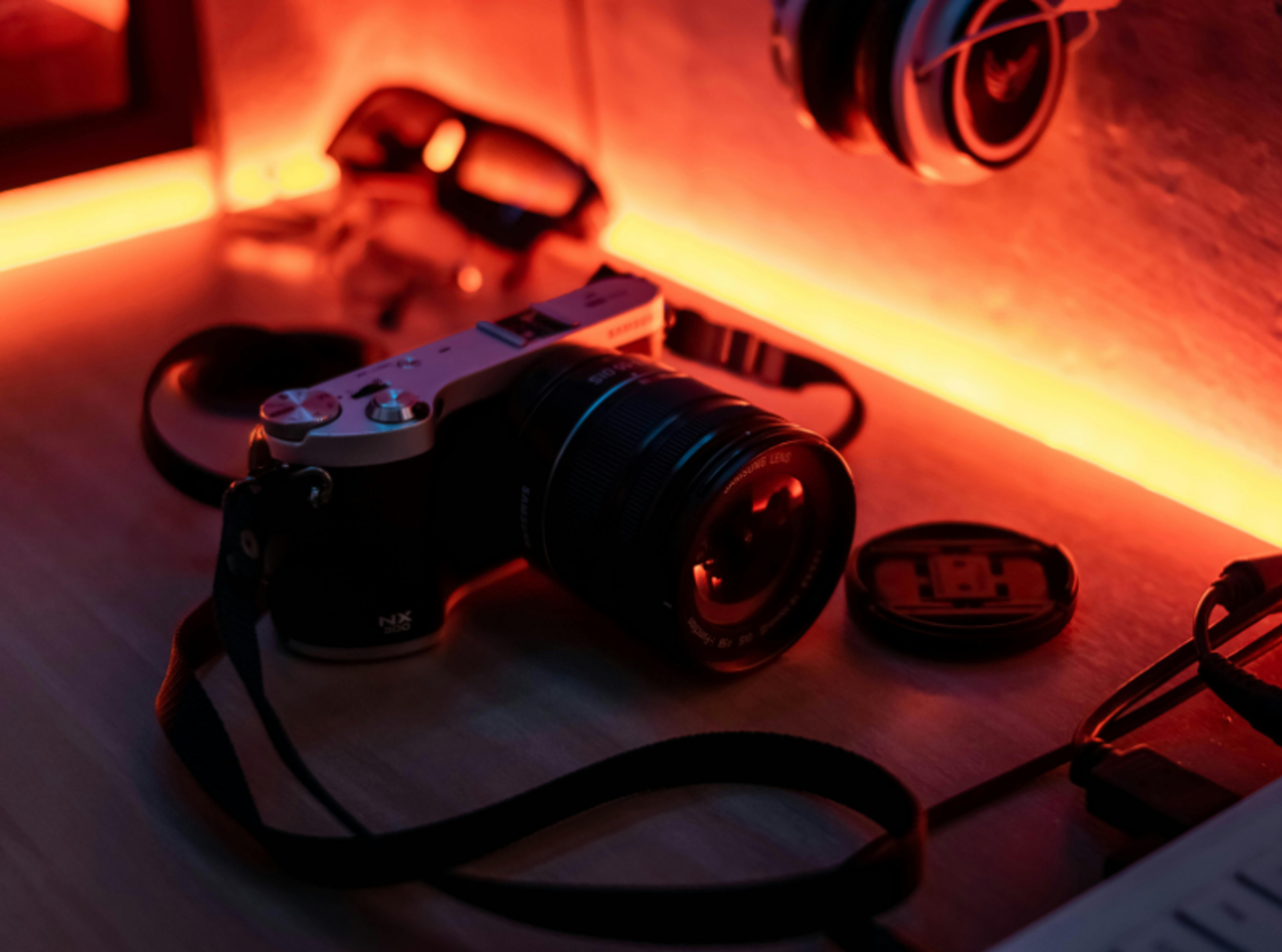
How to Take High Quality Photos of Your PC
How to Take High Quality Photos of Your PC
A custom gaming PC deserves to be shown off properly. Yet it can be challenging to figure out how to take high-quality photos of your PC.
The result? Washed-out RGB, harsh reflections, blurry details, and a build that looks way less impressive than it does in person.
Luckily, professional-looking PC photos don’t require a full photography studio. Our guide shows you how to take pictures of your gaming PC and how to avoid the most common mistakes that can make your build look flat or reflective.
Why High-Quality PC Photos Matter
When photographing a PC case like the HYTE Y70, you’re controlling how others perceive it. A sharp, well-lit image instantly communicates quality, cleanliness, and attention to detail. On the other hand, poor lighting and reflections can make even the most beautiful-looking system appear dull.
If you’re posting on social media, high-quality images attract more engagement. If you’re listing your PC for sale, clean photos increase buyer confidence. And if you simply want to document your build, taking the time to learn how to photograph a PC build means your system looks just as awesome in a photo as it does in person.
How to Photograph a PC Build: Choosing the Right Equipment
Getting the setup just right is probably more important than camera quality when learning how to take high-quality photos of your PC. A big misconception is that you need an expensive camera. But, to be honest, your smartphone works just fine. The real difference between an average shot and a great one really comes down to lighting and stability.
What does that mean? You’ll probably want a tripod for cleaner and more stable PC photos.
Lighting: The Foundation of Great PC Photos
Finding the best lighting for PC photos can take your image to the next level. What this also means, though, is that terrible lighting can really tank them.
If you want to avoid bad lighting, here’s how to get the best lighting for your PC photos:
- Control Ambient Light: Turning off unnecessary lights reduces unwanted reflections and isolates the PC as the subject.
- Use Natural Lighting to Your Advantage: Shooting near a window during late afternoon provides soft, diffused light that adds dimension without strong reflections.
- Experiment with Artificial Lighting: You have more control over artificial lighting, so try soft LED panels or diffused lamps positioned slightly to the side of the PC to create depth and highlight textures without flattening the image.
The number one lighting tip to keep in mind is to avoid direct, harsh lighting, as it can increase reflections and reduce contrast inside the case.
How to Take Photos of RGB Lights
RGB lighting is its own unique challenge. Cameras don’t automatically adjust to bright colors in a dark room as our eyes do, which is why many RGB shots look overly bright, blown out, or inaccurate in color.
If you are figuring out how to take photos of RGB lights, try:
- Avoiding shooting in total darkness: Pure darkness forces the camera to increase ISO or exposure, which can wash out colors. Instead, introduce a small amount of soft ambient light for balance.
- Lower Your ISO: A low ISO reduces grain and helps maintain rich RGB tones. You may need a tripod to compensate for the slower shutter speeds.
- Reduce Exposure: Slightly reducing exposure can also prevent bright RGB strips from appearing overly white or clipped.
- Pay Attention to White Balance: Automatic white balance can sometimes shift RGB hues, so you should adjust the manual settings to get the colors just right.
RGB should enhance the photo, not overpower it. Controlled lighting ensures the colors remain vibrant while the hardware itself stays visible and detailed.
Camera Settings That Make a Difference
Understanding basic camera settings significantly improves your PC photos, even if the adjustments are minor.
These are the camera settings you should pay attention to:
- ISO: Determines how sensitive the camera sensor is to light. Low ISO reduces digital noise and preserves image clarity, while higher ISO settings brighten the scene but introduce grain and reduce sharpness.
- Shutter speed: Controls how long the camera sensor is exposed to light. Slower speeds are best for low-light RGB scenarios, but they require a tripod for stability.
- Aperture: For DSLR or mirrorless cameras, aperture impacts depth of field. A mid-range aperture (f/5.6 or f/8) often works well for PC photos because it keeps most of the interior components in focus. An extremely shallow depth of field can blur the smaller details.
- Smartphone Tips: Lower your exposure slightly, then tap to focus on key components. Avoid using flash, as it creates harsh glare on glass panels and ruins RGB color depth.
Learning these photography fundamentals is essential when mastering how to take high-quality photos of your PC.
Composition and Angles That Showcase Your Build
Technical settings matter, but composition is what makes an image visually compelling. Shooting straight on from the center may seem natural, but it often results in flat images and strong reflections.
When deciding how to take pictures of your gaming PC, try:
- Slight side angle (not straight-on) for depth
- Eye-level with the GPU for dramatic effect
- Slight top-down angle for full interior visibility
- Close-up detail shots of cooling, RAM, or cable management
Avoid shooting directly at the glass panel from the center, as that’s what will cause heavy reflections and flat images. Another composition tip for taking PC photos is to use the Rule of Thirds. This composition style involves:
- Positioning your PC slightly off-center
- Keeping key components aligned with grid lines (think of a 3x3 grid)
- Avoid cluttered backgrounds
Think intentionally about what you want to highlight. If your build features custom liquid cooling, frame the reservoir prominently. If your theme revolves around a specific color palette, adjust lighting to complement it.
Managing Reflections
Tempered glass panels on PC cases are beautiful but notoriously difficult to photograph. Reflections of overhead lights or even yourself can easily ruin an otherwise perfect shot.
Some tips to avoid those pesky reflections include:
- Turning off overhead lights
- Wearing dark clothing while shooting
- Angling the camera slightly instead of shooting straight on
- Moving light sources to the side
- Using a polarizing filter (for DSLR users)
If you’re serious about learning how to photograph a PC build, managing reflections is an easy way to elevate your image quality.
Preparing the PC Before the Shoot
No amount of editing can compensate for visible dust or messy cables, which is why preparation is so important.
Before getting those shots, make sure you:
- Clean glass and panels thoroughly
- Remove dust from fans and components
- Hide cables behind the system
- Adjust RGB profiles for aesthetic color combinations
- Turn off unnecessary background lighting
Taking time to stage your setup makes all the difference between a casual snapshot and polished PC photos.
Editing: Refining Without Overdoing It
Post-processing should enhance your photo, not transform it beyond recognition. Simple adjustments can improve your PC photos in so many ways.
Instead of going all-out in Photoshop, focus on basic edits like:
- Increasing contrast slightly
- Lowering highlights if RGB is too bright
- Boosting clarity or sharpness
- Adjusting white balance
- Cropping for symmetry
Subtle refinement preserves realism while enhancing visual appeal, so you have a good-looking shot and not a cartoonish portrait.
Build a PC You Want to Plan a Photoshoot For
Mastering how to take high-quality photos of your PC comes down to three key principles:
- Controlled lighting
- Intentional composition
- Thoughtful camera settings
With practice, you’ll not only learn how to take photos of RGB lights accurately, but also how to create compelling images that truly capture your PC’s personality.
HYTE is all about stylish PC builds that reflect your passion and interests. Check out our PC cases, like the ITX case and our X50, to find your next stunning case that stands out.
Featured Posts
Best Anime and VTuber PC Cases
Discover the best anime and VTuber PC cases, including officially licensed anime‑themed PC cases and custom VTuber PC cases to match your favorite characters.
Why the HYTE Y70 Is Worth It for Modern PC Builds
See why the HYTE Y70 stands out with panoramic glass, vertical GPU support, and strong cooling potential. Discover why it fits modern PC builds.

X50 Astral Orange Is Almost Here: Pick an Orange
The X50 Astral Orange is almost here, and we are turning up the heat in the best way we know how. It is time to celebrate the orange side of gaming.

Black Friday Gaming Gear & PC Deals 2025
HYTE Black Friday sales are here, and we’re excited to share the amazing deals we’ll be offering this year! Our Black Friday sales event is your chance to save big on some of our most popular products. From November 20th through December 2nd, enjoy incredible discounts on PC cases and gaming accessories that bring both performance and style to your setup. If you’re looking to upgrade, now’s the perfect time to do it with HYTE.
